Getting Started
This guide walks you through the steps required to get Outreach running for your organisation, from initial access through to channel configuration and first campaign readiness.
Prerequisites
Before you can run campaigns, you'll need a valid integration for at least one delivery channel:
- SMS — a Twilio account with a Messaging Service. See SMS Configuration for the full setup.
- Email — a SendGrid account with an API key, plus at least one verified sender domain or email. See Email Configuration and Domains and Senders.
You can configure one or both — campaigns are channel-specific and only the configured channels are available in the campaign wizard.
Who Uses Outreach
Outreach has three primary user roles:
- Org Admin: responsible for requesting access, configuring delivery channels, and managing the organisation's Outreach settings.
- Admin: an in-product administrator that can do everything an Org Admin can do except change organisation-level settings or configure Outreach channels.
- Campaigner: responsible for creating, running, and monitoring campaigns.
For a detailed breakdown of permissions, see Roles and Permissions.
Architecture
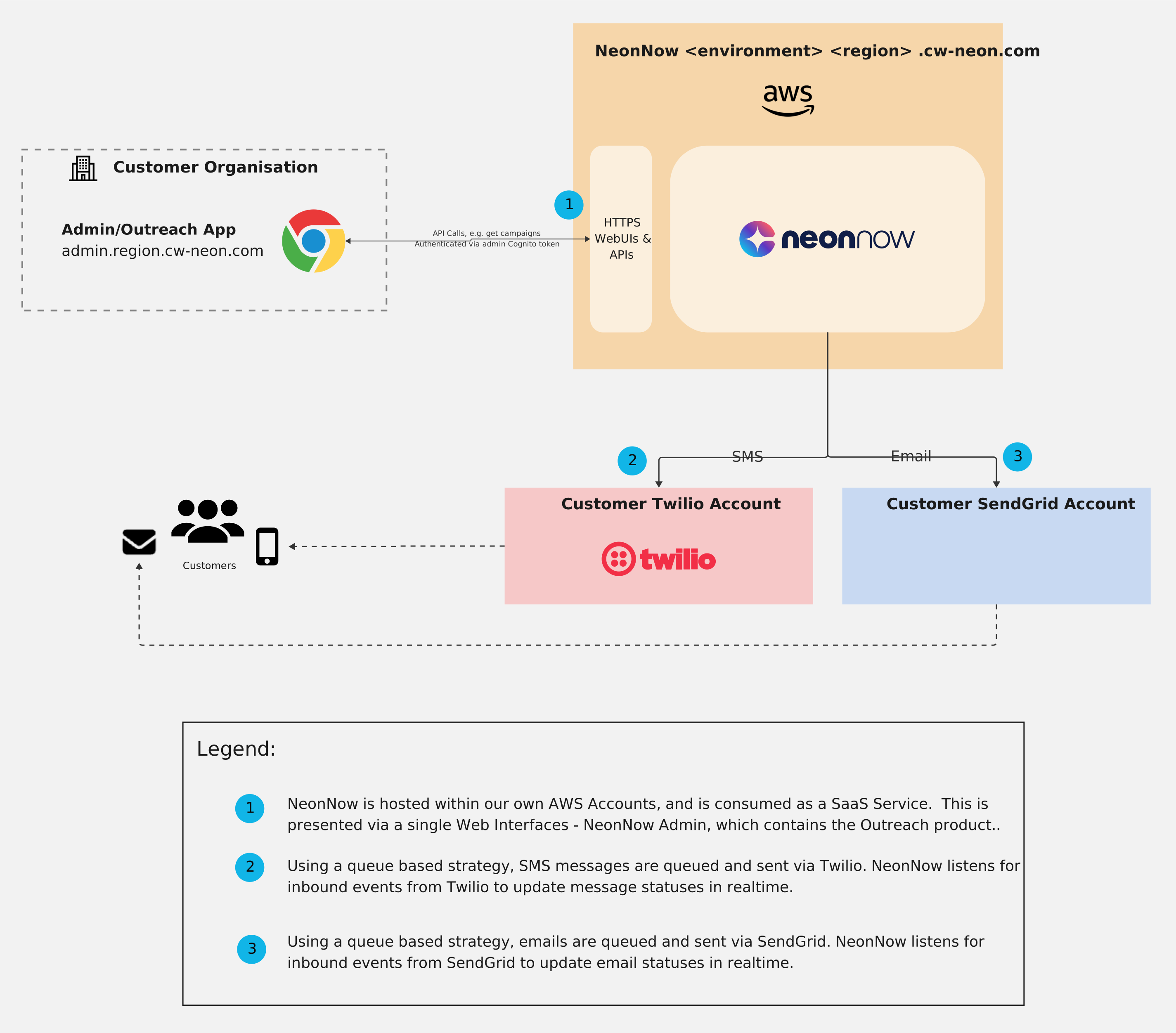
The following diagram shows how Outreach integrates with your organisation, including how campaigns are delivered through Twilio (SMS) and SendGrid (Email).
Step 1: Request Outreach Access
Outreach is an add-on product that must be enabled for your organisation before it can be used.
- Log in to the Admin app as an Org Admin.
- Navigate to Outreach in the sidebar.
- On the Outreach product landing page, select Request Access.
- Your request is submitted to the NeonNow team for review. The team verifies your organisation's eligibility, provisions the Outreach subscription, and notifies you when it's active. There is nothing else you need to do during this step — see Access and Setup FAQs for what to expect while you wait.
While the request is being processed, the landing page shows a "Requested" state. Once your request is approved and activated, the landing page updates to show the full Outreach interface.
Only Org Admins can request Outreach access. Campaigners who navigate to Outreach before it is enabled will see a landing page prompting them to contact their Org Admin.
Step 2: Configure at Least One Delivery Channel
Before any campaigns can be created, at least one delivery channel must be configured in Outreach Settings.
For SMS
You need a valid Twilio integration:
- Go to Outreach → Settings → SMS.
- Enter your Twilio Account SID, Twilio Auth Token, and Messaging Service SID.
- The system will validate the credentials with Twilio before saving.
If validation fails (for example, the Auth Token is incorrect, the Account SID does not match the token, or the Messaging Service SID does not exist on the account), an error message is displayed and nothing is saved — re-enter the correct values and try again.
See SMS Configuration for step-by-step instructions.
For Email
You need a valid SendGrid integration:
- Go to Outreach → Settings → Email.
- Enter your SendGrid API Key.
- Once the key is saved, add at least one verified domain or verified sender email.
See Email Configuration and Domains and Senders for step-by-step instructions.
Minimum Requirements
| Channel | Minimum to create a campaign | Minimum to run a campaign |
|---|---|---|
| SMS | Valid Twilio credentials | Valid Twilio credentials + Messaging Service SID |
| Valid SendGrid API key | Valid SendGrid API key + at least one verified sender |
Step 3: Prepare Your Campaign Materials
Before creating a campaign, make sure you have:
- A CSV file with recipient data (phone numbers for SMS, email addresses for Email)
- Message content ready, or a plan for what you want to say
- Opt-out language (SMS) or unsubscribe link (Email) included in your template
- For email: your sender identity (From email, Reply-to email, Subject line)
CSV Format
Your CSV must include one column containing the recipient (phone number or email address). Any other columns can optionally be mapped as variables that personalise each message. For example:
| first_name | phone_number | account_balance |
|---|---|---|
| Jane | +61412345678 | 123.45 |
| Mark | +61498765432 | 87.20 |
SMS phone numbers must be in E.164 format. See Contacts for full details on supported columns, formatting rules, and limits.
Step 4: Create Your First Campaign
Once access is enabled and a channel is configured, any user with the Campaigner, Admin, or Org Admin role can create and run campaigns.
Follow the Quickstart for a step-by-step guide to your first campaign.
Core Rules and Limits
| Rule | Detail |
|---|---|
| CSV upload | Up to 300,000 rows and 50 MB per file |
| Campaign channel | Single channel per campaign (SMS or Email), cannot be changed after creation |
| Concurrent runs | One active campaign per channel type at a time (one SMS + one Email can run simultaneously) |
| Email attachments | 20 MB total per template |
| Send Test Email recipients | Up to 10 recipients per Send Test Email action |
The 10-recipient limit applies specifically to the Send Test Email button inside the email template editor. There is no separate "test campaign" classification — every campaign you run sends to its full contact list, so use the Send Test Email feature to verify content before launching.
Next Steps
- Quickstart — create and run your first campaign
- Campaigns Overview — understand the campaign lifecycle
- Roles and Permissions — see what each role can do